Books of rides electronically

Logbooks

The paper logbook written up every December is over

Drivers record trips as they go, straight from the browser, the mileage follows on by itself and the accountant downloads a finished overview at month end.

Try it free Pricing

Available in languages: CZ Help
What you can use the logbook module for
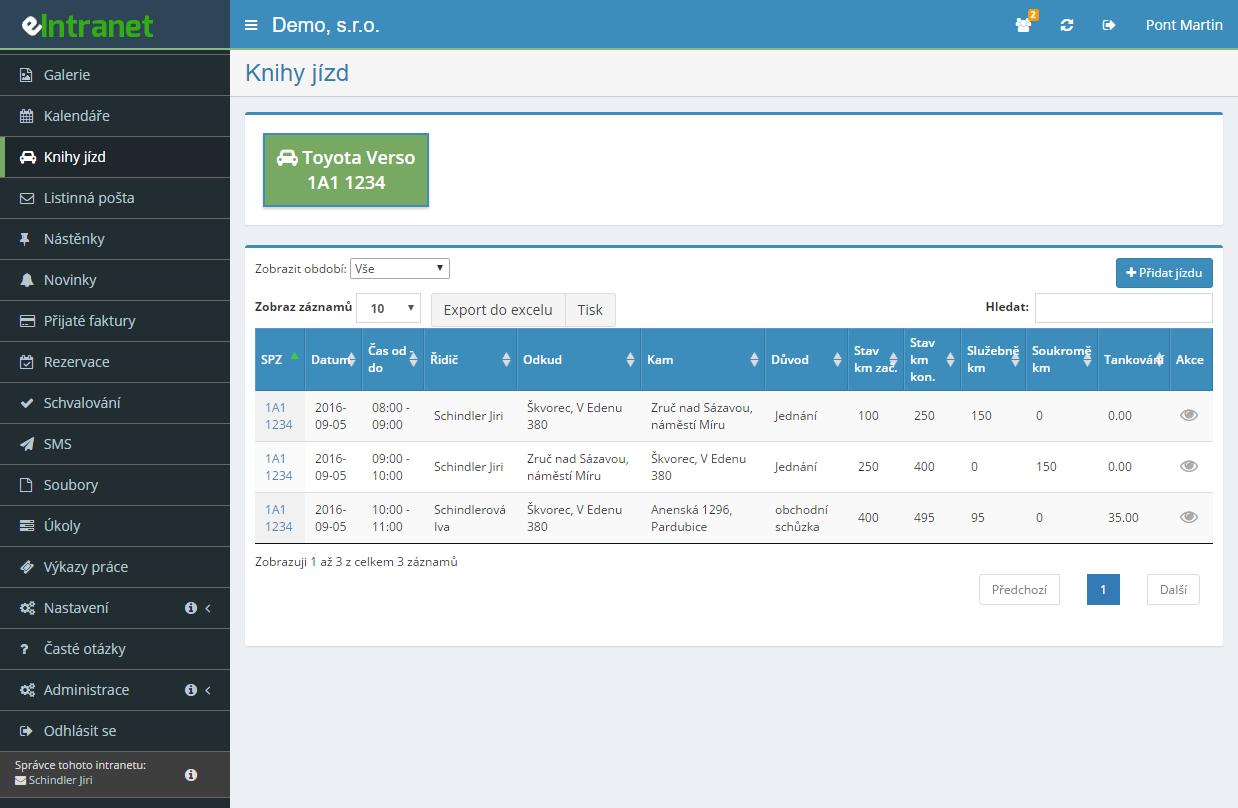
The logbook module is designed to record the logbook in electronic form, it allows you to record the necessary data related to company vehicle journeys. Electronic logbook management is quite comparable to the classic, printed logbook management (similar procedures), but it is more convenient and economical than the printed logbook management.
An electronic logbook for cars, trucks and machinery

The logbook in eIntranet handles passenger cars, heavy goods vehicles and working machines – for machines it records hours worked instead of kilometres. Every vehicle gets its own overview and its own list of drivers.

The route fills itself in from history

Pick From and To and the system supplies the distance from the last trip along the same route. The opening odometer reading follows on from the previous record, and the start time from the end of the previous trip.

Refuelling and average consumption

Enter the litres and the odometer reading fills in by itself. After the next fill-up the system works out the average consumption across the whole stretch between the two tanks.

Backing figures for billing trips to clients

Set a rate per kilometre, per hour or a flat amount per trip. The overview by job then totals the kilometres, hours and value, and you add the number of the invoice you issued.

What you can use the logbook module for

  • Three views of the same data

    The driver sees the trips of their own vehicle, the administrator sees every vehicle in one table, and whoever raises invoices gets the overview grouped by job.

  • Overlapping trips are rejected

    If a new trip clashes in time with one already recorded, the system refuses it. One car cannot be in two places at once.

  • Push a trip into a travel order

    Click the arrow beside a trip, pick a travel order, and the route, distance, date and times transfer into it as a finished line.

  • Warning when a service is due

    Saving a trip compares the odometer against the service interval held in the vehicle register. An overrun is flagged immediately, not at the annual inspection.

  • Export to Excel and print

    Filter a month and download the XLSX for your accountant, or open the printable logbook layout.

The electronic logbook is a key tool for efficient tracking and management of company vehicles. Move the traditional paper log into the cloud, where data remains securely stored, easily accessible, and always up-to-date.

Main benefits:

  • Recording trips for both personal and commercial vehicles or equipment – all in one system without paper forms.
  • Setting invoicing rates based on vehicle type, trip type, or rate tables, eliminating errors from manual calculations and saving up to 30 % of accounting time.
  • Trip overview by assignment – quick generation of reports for cost control per project or customer, ideal for audits and internal analysis.
  • Automatic backup and audit trail – data is protected against loss and can be easily verified for compliance with legal requirements.
  • Integrated alerts for exceeding mileage limits or planned expenses, helping prevent unplanned costs.

Save time, reduce errors, and gain full control over operating costs. Call us today to find out how an electronic logbook can move your business forward.

What a logbook is and why a company needs one

A logbook is a record of business trips made by a company vehicle in which every journey carries a date, a time, a driver, a route, the purpose of the trip and the odometer reading at the start and at the end. It serves two purposes: as evidence for tax purposes and as the basis for billing journeys to a customer.

The Logbooks module in eIntranet keeps that record electronically for three different classes of equipment. On passenger cars it tracks kilometres and splits them into business and private. On heavy goods vehicles marked as TIR the kilometres are recorded the same way but without the private portion. On working machines, hours worked are counted instead of kilometres and derived from the time interval.

The difference from a paper book in the glovebox is not only that it cannot be lost. Electronic records watch the continuity of odometer readings, refuse to accept two trips of the same vehicle at the same time and fill in the distance themselves on a repeated route. A paper book that somebody writes up in December for the whole year manages none of that – and it shows.

Companies typically deploy the module in three situations: they run company cars that staff also use privately, they bill transport or machine work to customers by the kilometre or by the hour, or they need a basis for travel allowances without drivers typing the same details twice.

How recording a trip in eIntranet works, step by step

The whole process has four phases and most of the work sits in the first one – the setup. Recording an actual trip is then a matter of a few clicks.

  1. Creating the vehicle. In the module settings the vehicle gets a name, a registration number, a type (car, TIR, machine) and, crucially, an Initial odometer reading. Without it the first trip has nothing to follow on from and the opening odometer field stays empty. You also define which users may drive the vehicle – until at least one driver is assigned, the Save button does not even appear in the trip dialog.
  2. The driver records the trip. The driver selects the vehicle, clicks Add trip and fills in driver, date, time from – to, From, To, purpose and the closing odometer reading. The system prefills what it can: the date from the last trip, the start time from the end of the previous trip that day (otherwise from the vehicle's default time) and the From field from wherever the last trip ended.
  3. Checks on save. Before the record is written, the system verifies that the trip does not overlap in time with another trip of the same vehicle. If it does, saving is refused with a message that the vehicle cannot be in two places at once. At the same time the odometer reading is compared against the service interval from the vehicle register.
  4. Close-off and output. At month end the accountant filters the period and downloads the XLSX; whoever raises invoices opens the overview by job and adds the invoice number to the journeys that have been billed.

Editing and deleting are deliberately restricted, because a logbook that anyone can rewrite retrospectively loses its value as evidence. The job, purpose and note can be changed at any time. Date, time, route and distance only on the last record, and only within the number of days back that the administrator has set. Only the most recent trip of a vehicle can be deleted – to reach an older one you first have to remove everything newer. The module administrator is not bound by these limits, but when reaching into an older record they have to watch the continuity of the mileage themselves.

Where the trips come from: manual entry, addresses from CRM and automatic monthly fill

Let us be clear about what the module does not do: it does not pull trips automatically from a GPS unit. Vehicle tracking in eIntranet is handled by the separate GPS location module, which is the only module requiring its own hardware. Logbooks are not directly linked to it and do not take data from it.

Trips reach the module by three routes.

Manual entry, but with a memory

The most common route. The From, To and Purpose fields offer values from earlier trips, so the same address does not get written a different way every time. The key point is elsewhere, though: when you pick a From and To combination that has occurred before, the system fills in the distance from the previous trip along that route. For a driver going round the same ten customers, recording a trip comes down to two picks from a list.

From addresses in CRM

If the company has the CRM module active and the user has access to it, addresses can be imported into the monthly fill preparation straight from the business partner database – street, town, postcode and country. That removes the retyping of addresses somebody already put into the system once.

Automatic monthly fill

An administrator has to enable this on the vehicle; a button for preparing the monthly fill then appears in the logbook. In the wizard you enter favourite addresses and how often they occur, the opening and closing odometer readings, the fuel level at the start and end of the month, the working days of the week and the working hours. From that the system generates records for the whole month.

A few details worth knowing in advance: the frequency of an address can be set to daily, weekly, start of day only, end of day only, both start and end, or random. The fuel level is checked against tank capacity – taken from the vehicle register, and where that is not filled in, 60 litres is assumed. The generated records need reviewing; this is not a finished logbook but a skeleton you complete.

Where the data goes

There are four ways out: export to XLSX according to the filter in force, the printable logbook layout, transferring an individual trip into a travel order with one click on the arrow, and the overview by job as the basis for an invoice.

Everything the logbook module can do

Function What it actually does
Three classes of equipment Passenger car (business and private kilometres), TIR (kilometres without the private portion) and machine (hours worked derived from the time interval). The trip table has a different set of columns for each.
Three views By vehicle for the driver, All logbooks for the administrator and Overview by job for invoicing. The last two are available only to the logbook administrator.
Consumption calculation After each fill-up the average consumption is worked out retrospectively as litres filled / ((odometer at fill-up − odometer at previous fill-up) / 100). The result appears against every trip since the previous fill-up.
Billing rates A price per kilometre for cars and TIR, a price per hour for machines, or a flat price for the whole trip. The rate prefills from the vehicle settings and can be overwritten on an individual trip.
Period filter A drop-down with the current month and the twelve preceding ones, plus an All option. The overview by job adds filters for date from – to, vehicle, job and driver.
Totals in the footer The overview by job totals passenger-car kilometres, TIR kilometres, machine hours and the overall value separately.
Invoice number on the trip Each billed journey carries the number of the invoice issued, so it stays traceable what has already been charged.
Duplicate check The system refuses to save trips of the same vehicle that overlap in time.
Service intervals Saving a trip compares the odometer against the interval from the vehicle register. Once exceeded, a warning appears and the vehicle is flagged as needing service.
Note on the trip A free text field for anything out of the ordinary – a diversion, waiting at a customer, a breakdown.

Choosing an electronic logbook: what to ask before you buy

  • Do you genuinely need an automatic logbook fed from GPS? A tracking unit and its monthly running fee are quoted individually – see the price list. It pays off where vehicles are out all day and nobody has time to write anything down; not where a van goes out three times a week.
  • Does the tool handle machines and heavy goods vehicles too? Most "logbooks" count kilometres and nothing else. An excavator billed by the operating hour does not fit into them.
  • Does the system watch odometer continuity? Without it you end up with a record where the mileage jumps between trips – and that kind of logbook is more of a liability at an inspection than an asset.
  • Can records be edited retrospectively, and by whom? Complete freedom to edit undermines the evidential value; a complete ban makes it impossible to fix a typo. The module splits the two: content fields (job, purpose, note) are always open, numeric ones only on the last record and within the configured number of days back.
  • Will I get a billing basis out of it, or just a table of kilometres? If you recharge transport, ask about totals by job and about recording the invoice number against an individual trip.
  • Do the trips carry over into travel allowances? Typing the same route a second time into a travel order is pointless work that nobody enjoys – and therefore nobody does.

A logbook for a sole trader, for a ten-vehicle fleet and for construction plant

With a logbook the number of users follows the number of drivers, not the number of vehicles. That matters: a company with fifteen cars and five drivers who share them pays for five people.

A sole trader with one vehicle mainly wants peace of mind at an inspection. One vehicle, one driver and a monthly export for the accountant will do. The automatic monthly fill saves most of the work, because the routes repeat.

A firm with ten cars and service technicians has a different problem – not the record itself, but getting the technicians to keep it. Prefilling is what helps here: when the distance appears by itself after picking the route, recording a trip takes twenty seconds and people actually do it. The administrator then opens the All logbooks view once a month and checks for gaps.

Construction and agricultural operations value the "machine" type. An excavator, a loader or a tractor is not billed by the kilometre but by the hour – and the module derives those from the time interval by itself. Combined with an hourly rate and the overview by job, that produces an invoice basis with no manual arithmetic.

What an electronic logbook costs

The Logbooks module is not charged separately. You pay per user per month and the subscription covers every module except GPS location.

Number of users basic normal extra
1–102.4 €2.8 €3.2 €
11–202.1 €2.5 €2.9 €
21–501.7 €2.1 €2.5 €
51–1001.5 €1.9 €2.3 €
101 and more1.4 €1.8 €2.2 €

Prices per user per month, excluding VAT. The current pricing is on the Price list page.

The question almost everybody asks about a logbook: am I paying for vehicles or for people? For people. The number of vehicles in the module is unlimited and has no effect on the price. A company with twenty cars and six drivers therefore pays for six users – and if the drivers record their own trips, those are the only people who need an account at all.

One indirect cost is worth mentioning. If you want to add real position tracking to the logbook, a GPS unit has to be purchased and its operation carries a monthly fee; both are quoted individually, so ask for an offer or check the price list. It is the only item connected with a vehicle fleet that is paid on top of the subscription – and the Logbooks module does not require it. Without a GPS unit it works without restriction.

Between the tiers the difference shows mainly in support. The basic tier has none, normal has e-mail support and telephone support is reserved for extra. Storage per user (0.5 / 2 / 4 GB) plays practically no part here, because a logbook stores no large files.

A free logbook: what works without paying and where the limit sits

A spreadsheet or one of the free generator applications costs nothing, and for a single car with a handful of trips a month that may well be enough. There is no point pretending otherwise.

The trouble starts when the record has to prove something. A table in which the odometer reading can be rewritten at any time without a trace is weak evidence – and a generator that "works out" the mileage to match a desired annual total is weaker still. The differences that usually decide it:

  • Odometer continuity. In a spreadsheet nobody notices that 200 km are missing between trips. The module takes the opening reading from the last record automatically.
  • Overlapping trips. Free tools do not check whether the record has the car driving to two cities at once.
  • Several drivers on one vehicle. A shared file on a drive ends in overwritten rows. The module writes per user and records who entered the trip and who drove it.
  • Consumption. An average worked out by hand from receipts is the first thing people stop doing.
  • Billing and travel allowances. Here free solutions stop entirely – they offer neither an invoice basis by job nor a transfer of a trip into a travel order.

In short: for one car you can manage without us. Once there are more than three vehicles, several people drive them, or transport gets recharged to customers, a manual record starts to fall apart. eIntranet offers 14 days of free trial, so you can check it against your own operation.

How to roll a logbook out

  1. Start with vehicles, not trips. Enter every vehicle in the settings with its registration, the correct type and above all the current odometer reading in the Initial odometer field. That number is the foundation every later trip builds on.
  2. Assign the drivers. With no drivers, the Save button does not appear in the trip dialog. It is the most common reason for a "cannot record a trip" report on day one.
  3. Decide about billing. If you recharge journeys, set a rate per kilometre, per hour or a flat price on the vehicle. Without billing enabled the overview by job stays empty even when trips with a job exist.
  4. Set how far back editing is allowed. Too short a window means every typo goes through the administrator. Too long a one weakens the evidential value of the record.
  5. Link vehicles to the vehicle register. Matching runs on the registration number and unlocks service-interval monitoring, transfer of consumption data and the tank capacity used by the monthly fill.
  6. Teach drivers one thing. To record as they go and always fill the tank completely. Without full tanks the consumption figure will not be accurate, and the first average only appears after the second fill-up.

What to read next

  • Vehicle register – inspections, road tolls, insurance and service intervals. Matching with the logbook runs on the registration number.
  • Travel orders – a trip from the logbook transfers into one with a single click, route, distance and times included.
  • CRM – the source of addresses for the monthly fill; it removes the retyping of business partner addresses.
  • GPS location – a separate module for real vehicle tracking; it requires a GPS unit and a monthly running fee.

Frequently asked questions

The vehicle has no initial odometer reading in its settings. The first trip has nothing to follow on from, so the field stays empty. Go to Settings → Vehicles, find the vehicle and enter the current odometer reading.

From then on the opening reading fills in automatically from the last recorded trip.

Because no drivers are assigned to the vehicle. Without at least one driver the system will not let a trip be saved and hides the button.

The fix: Settings → Vehicles, open the vehicle and add the users allowed to drive it under Vehicle drivers. It is the most common snag on day one.

Yes. Each vehicle is given a type: passenger car, TIR or machine. On passenger cars kilometres split into business and private, on TIR the private portion is not recorded, and on machines hours worked are counted instead of kilometres.

The hours are derived automatically from the trip's time interval and are billed at the hourly rate you set on the vehicle.

No. The Logbooks module does not work with GPS units directly. Vehicle tracking in eIntranet is handled by the separate GPS location module, which is the only one requiring its own hardware and is paid on top of the subscription.

Recording trips in the logbook is manual, but with a memory – the system prefills route, distance and times from history. For regular routes there is also an automatic monthly fill.

The trip you are entering overlaps in time with another already recorded trip of the same vehicle. It is a deliberate check that prevents an inconsistent record.

Find the conflicting trip in the table and adjust the times so they follow on from each other. Most often it is a typo in the end time of the previous trip.

Usually because there has only been one fill-up so far. Consumption is worked out from the second fill-up onwards – the system needs two points between which to measure the distance.

Check as well that the litres field is filled in and greater than zero and that the odometer reading at the fill-up is right. For an accurate result the tank has to be filled completely every time; a partial fill will not give a precise figure.

Only partly. The job, purpose and note can always be changed. Date, time, route and distance only on the last record and only within the number of days back set by the vehicle administrator.

The module administrator is not bound by these limits and can edit any record – but when touching an older trip they have to watch the continuity of the odometer readings against later trips themselves.

Only the last recorded trip of a vehicle can be deleted. That protects the continuity of the odometer readings. If another trip has been recorded after yours, you have to remove the newer one first.

The second possible reason is permissions: deletion is allowed for the driver who entered the trip, the driver who made it, the logbook administrator and the module administrator.

Yes, but an administrator has to enable the function on the vehicle first. A button for preparing the monthly fill then appears in the logbook.

In the wizard you enter favourite addresses and how often they occur (daily, weekly, at the start or end of the day, or at random), the opening and closing odometer readings, the fuel level, and the working days with working hours. The generated records need reviewing – they are a skeleton, not a finished logbook.

That view shows only trips that have a job filled in and belong to a vehicle with billing enabled. If no billing rate is set on the vehicle, its trips will not appear in the overview.

Check the filters as well – too narrow a period, a specific vehicle or a specific driver can exclude every record.

Yes. In the trip table click the right-arrow icon beside the trip and pick an existing travel order or create a new one.

The route, distance, date and times transfer into the travel order as a finished line and the link between the trip and the order is preserved. That removes the second entry of the same details.

Per user. The number of vehicles in the module is unlimited and has no effect on the price. A company with twenty cars and six drivers pays for six users.

The Logbooks module is not charged separately – it is part of the subscription like every other module, and it needs no hardware.

Registration is non-binding and includes a free 14-day trial of the application.

Try it free Pricing