
News
Let the news reach people before they start looking for it


 Help
Help
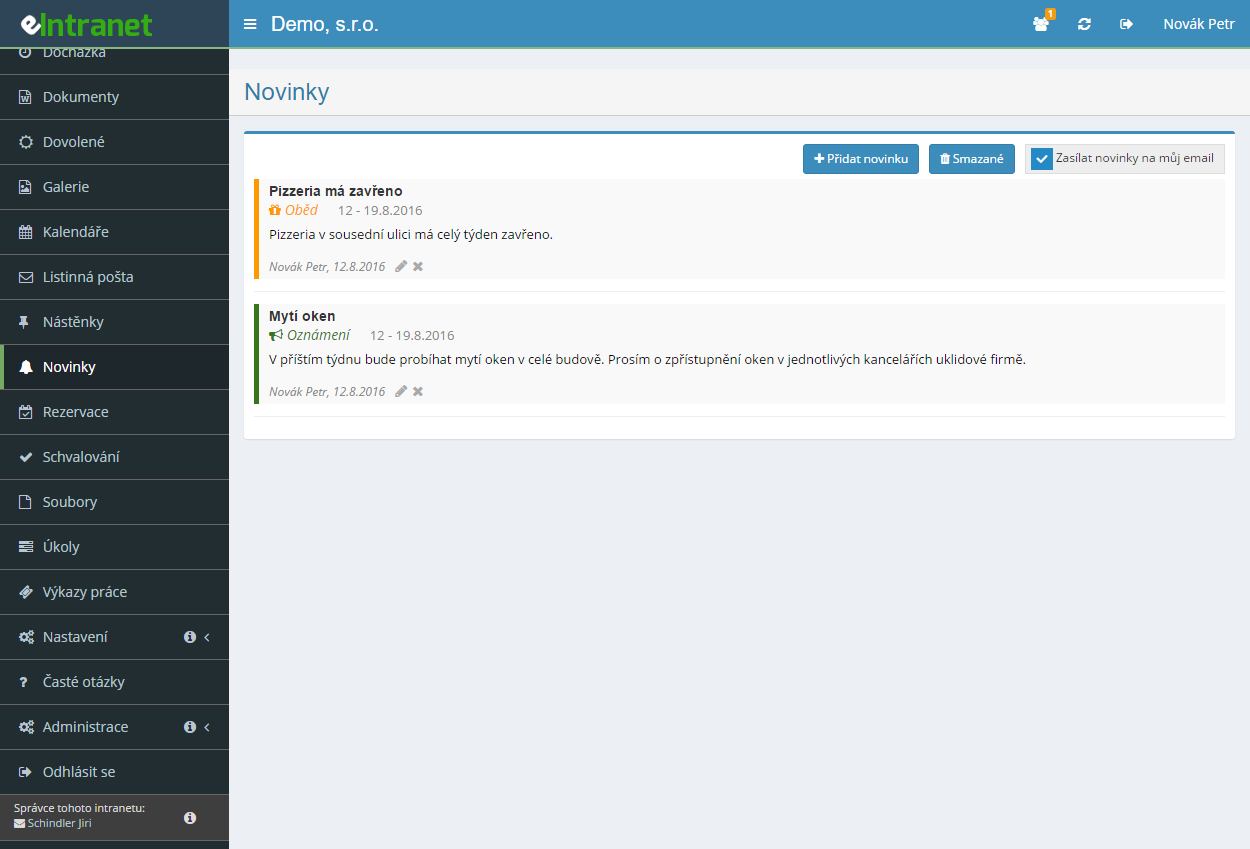
Announcement, invitation, deadline, urgent notice – you define the types yourself and give each a colour and an icon. The list then reads at a glance.
On every item you set when it should appear and when it should go. Today plus seven days comes prefilled, so the overview clears itself.
The Send to groups only button narrows the recipients to specific job positions. Optionally as blind copy and with attachments inside the message.
Expanded cards, previews with a link, or a magazine layout with a large lead item and an archive. Pick what suits your company.
What you can use the news module for
-
Draft before publishing
Save a half-written item as a draft – only the author and administrators see it. Publish it once it is finished.
-
Lead photo with a crop tool
Upload the image and rotate, zoom and crop it right in the system. The recommended size is 600 × 360 px.
-
A record of who the e-mail actually went to
The eye icon on an item lists the addresses, the time of sending and whether the e-mail went to everyone or only to chosen groups.
-
Shortened preview with a separator
Three underscores in the text mark where the intro shown on the front page ends. The full article opens in the detail view.
-
An automatic item for a new document
Adding a document can create a news item linking straight to it. Nobody has to write the announcement by hand.
-
Filters and an archive of older items
Search by title, by content, by author and by type. Older items stay available under the Archive button.
Module Quick Employee Information Sharing is a key tool for internal communication, enabling you to instantly and effectively share important news, deadlines, or tasks with the entire team.
Main benefits of this module:
- Fast information distribution – automatic notifications sent via email and in-app, so employees never miss critical events.
- Clear post types – labeling as announcement, deadline or task ensures instant orientation and easy content categorization.
- Controlled time frame – setting the display period allows you to schedule communication so that information is available only for the desired duration.
- Increased employee engagement – regular, structured sharing fosters a sense of belonging and boosts motivation.
- Time savings – eliminating manual email or internal bulletin distribution saves an average of 15 minutes per employee each week.
Leverage this module to elevate your company’s communication—faster, clearer, and with measurable impact on productivity. Try eIntranet.net today!
Frequently asked questions
Yes, after clicking on the detail (the eye icon below the news text), you can see what parameters for sending the e-mail were selected and to whom and when the e-mail was sent.
For new images, we recommend a ratio of 1,666:1 (width x height), i.e. e.g. 1666 x 1000px.
If you have a portrait image, please adjust it so that it aligns to the left and transforms to landscape in this ratio with a transparent background (the .png format can do transparent backgrounds).
Usually for one of two reasons. Either you saved it with the Save as draft button – a draft is visible only to its author and to administrators and is flagged with the word Draft in green.
Or the display period does not fit. The item shows only within the range set in Display from – to. If the from date lies in the future or the to date has passed, it is not in the overview.
The e-mail goes out only if the author ticked E-mail everyone when saving, or if you belong to a group the message was targeted at. With nothing ticked the e-mail reaches subscribers only – so it should have reached you.
Check with the eye icon on that item: the modal lists the complete set of addresses, the time of sending and which groups the message was aimed at.
No. On an already published item, saving does not resend the e-mails. That is deliberate – fixing a typo should not bother the whole company a second time.
A repeat send happens only when you save an item that has never been sent, that is a draft. The e-mail options are therefore shown only on new items and on drafts.
Yes. When saving, click the Send to groups only button; a list of work groups appears and ticking them narrows the recipients to those chosen.
It fits wherever a change concerns only production or only sales. Blanket sending to the whole company is the fastest way to teach people that these e-mails do not matter.
Your permission sits at the Read level. Only a user at Read, write or higher can create items.
Module rights are set under Settings → News → Access rights, both for individual users and for whole work groups. Ask an administrator to raise your level.
Click the eye icon on the item. A modal opens with the sending detail: whether the e-mail went to everyone, which groups it targeted, whether it went as blind copy, whether it carried attachments, the date and time of sending and the complete list of addresses.
The icon is visible to the item's author and to users with delete rights. Others do not see it, because these are operational data.
Shelf life. News items have a display period from – to and vanish from the overview once it passes; they suit invitations, shutdown notices or word that a new price list applies from Monday.
A board holds what should stay up permanently – procedures, contacts, rules – and adds read confirmation and discussion on the post. In practice the two modules complement each other well.
Yes, that is what drafts are for. The Save as draft button stores the item without anyone else seeing it – it is flagged with Draft in green and visible only to its author and administrators.
You publish it by opening the draft for editing and saving with the ordinary Save button. Only then do the e-mail notifications set on the draft go out.
Yes. In the item detail click the crop icon (Edit lead photo). A tool opens where you rotate the image with the Rotate button, zoom with the slider and shift the crop using the white rectangle.
The ideal size is 600 × 360 px, a 5:3 ratio – the tool fits the resulting crop to that size by itself. The lead photo applies to display types 2 and 3.
No. Sending is not charged separately and has no monthly cap – unlike newsletter tools, which bill per thousand messages delivered.
The price depends solely on the number of users with an account in the system. The News module is not charged separately; it is part of the subscription like every other module.
Registration is non-binding and includes a free 14-day trial of the application.